
Your Entire Shift, Right in Your Pocket
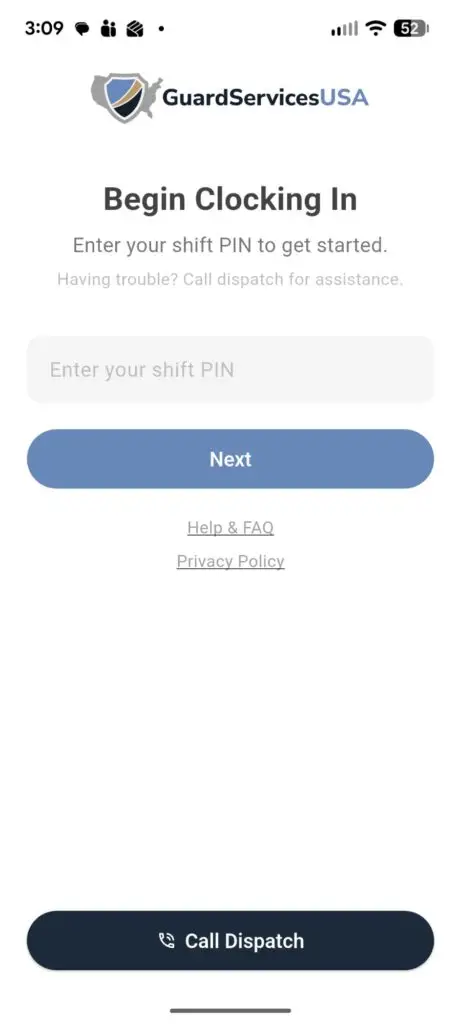
Clock in, submit incident reports, log visitors, and stay connected with dispatch — all from one simple app. No account needed. Just enter your shift PIN and go.
Built for Security Guards in the Field
The GuardServicesUSA – Protect App gives every guard on assignment everything they need for a successful shift — right from their smartphone. No complicated logins, no paper forms.
You receive a unique PIN for each shift. Open the app, enter your PIN, and you’re in. Everything you do — from clocking in to filing an incident report — is automatically logged and sent to dispatch in real time.
Requires an active internet connection (Wi-Fi or mobile data). Works on both iPhone (iOS) and Android.
GPS Clock-In
Verifies you're physically at the job site while clocked in.
Incident Reports
File and submit detailed reports to dispatch in seconds.
Visitor Log
Record visitors entering the property with automatic timestamps.
Hourly Status Updates
Send quick shift notes to dispatch, timestamped automatically.
Break Tracking
Log break start and end with manager name for accurate records.
Daily Activity Report
Your full shift log — visible any time from your dashboard.
Guard Services USA – App FAQ
Getting Started
What is this app?
This app lets security guards clock in and out of their shifts, submit incident reports, log visitors, and communicate their activity to dispatch — all from their phone.
Who should use this app?
Security guards assigned to shifts managed by Guard Services USA.
Do I need the internet to use this app?
Yes. The app requires an active internet connection (Wi-Fi or mobile data) to log in, clock in, and submit any reports. If you lose connection during your shift, the app will let you know and ask you to reconnect before you can continue
Is the app free?
Yes. The app is provided to you by Guard Services USA at no cost.
What phone do I need?
The app works on iPhones (iOS) and Android phones. If you are unsure whether your phone is compatible, contact dispatch.
Do I need to create an account?
No. You do not create an account. Guard Services USA provides a PIN for each shift. That PIN is your login.
Logging In
How do I log in?
1. Open the app.
2. Type in the PIN you received for this shift.
3. Tap Next.
4. The app will check your location (see Section 3 below).
Where do I get my PIN?
Your PIN comes from your work order provided to you or your company. It is specific to your shift. Call 888-782-3900 if you don’t have one.
My PIN isn’t working. What do I do?
Double-check that you typed it correctly. If it still doesn’t work, please note any error messages and call dispatch at 888-782-3900.
How do PINs work? Do I use the same PIN every day?
Typically, the same start time at the same location will have the same PIN every day. If there are multiple guards or multiple start times at a location, there will also be multiple PINs. Please use a PIN associated with the correct start time. You will receive an error if the PIN is already in use by another guard and you will receive a different error if the PIN is for a different start time. PINs are also subject to change. Please call dispatch at 888-782-3900 if there is any confusion.
I see a “Call Dispatch” button on the login screen. What is that for?
Tap it to call Guard Services USA dispatch directly at 888-782-3900. Use it any time you need help.
Location & GPS
Why does the app need my location?
The app checks that you are physically at the job site before it lets you clock in. This protects the client and confirms you are where you are supposed to be.
The app is asking for permission to use my location. What do I do?
Tap Allow (or “Allow While Using App”). Without this, you cannot clock in. You only need to do this once; the app will remember your choice.
I allowed location but it still says I’m not close enough. Why?
A few possible reasons: – You are too far from the site. You must be on the job site to clock in. – Your GPS is inaccurate. Step outside or move away from walls and try again. Indoor GPS can be unreliable. – Your phone’s location settings are off. Go to your phone’s Settings, find this app, and make sure Location is set to “While Using the App” or “Always.”
The app shows me a map with my location and the site location. What does that mean?
It means you are not close enough to clock in yet. The blue dot is you; the red pin is the job site. Drive or walk toward the site and try again once you arrive.
I’m at the right location but the app says I’m too far. What do I do?
1. Make sure your phone’s GPS/Location Services are turned on.
2. Step outside if you are indoors.
3. Wait 30 seconds and try again.
4. If the problem continues, call dispatch at 888-782-3900.
Clocking In
How do I clock in?
1. Log in with your PIN (see Section 2).
2. The app will verify your location.
3. Fill out the Clock-In form (your name, phone number, photos, and manager information).
4. Tap Submit.
5. Read the Job Site Rules and check the box to confirm you’ve read them.
6. Tap Submit — you are now clocked in.
What information do I need to fill out when clocking in?
• Your first and last name
• Your cell phone number
• A photo of the manager or the storefront/entrance (so dispatch can verify you’re on site)
• A selfie showing your full uniform
• Whether you are armed (“Yes” or “No”) – If armed: a photo of your firearm in its holster
• Your LEO (Law Enforcement Officer) status
• Manager sign-off (their name and signature, or a reason if the manager is not available)
What if I’m required to show my Guard ID card?
At some locations, you will see an extra field asking for a photo of your Security Guard ID card. Take a clear photo of the front of your card and attach it. If you do not have a current Security ID Card please take a picture of any state issued ID and notify dispatch at 888-782-3900.
I can’t get a manager signature. What do I do?
The app gives you two options:
• “Manager is on duty but currently unavailable” — Check this if the manager is at the site but you can’t reach them right now. You are committing to checking in with the manager as soon as possible.
• “No manager check-in is possible” — Check this if there is no manager at all (for example, a fire watch or an unattended post).
Only check one of these boxes. Do not check both.
Can I take photos inside the app?
Yes, Tap the camera icon next to each photo field and your phone’s camera will open. Take the photo and it will be attached automatically.
The photo upload is taking a long time. Is that normal?
Yes, Photos are uploaded to the server when you submit, which can take 10–30 seconds depending on your internet connection. Do not close the app while the spinning indicator is showing. Wait for the confirmation message.
My clock-in submission failed. What do I do?
You will see a red message at the top of the screen explaining the error. Check your internet connection and tap Submit again. The form does not reset — your information is still there.
After I submit, what happens?
The app takes you to the Job Site Rules screen. Read the rules, check the acknowledgment box, and tap Submit. You are then taken to your shift dashboard.
During Your Shift
What can I do from the main shift screen?
Once you are clocked in, your shift dashboard shows eight options:
| Button | What It Does |
|---|---|
| Submit Status Update | Send a quick note about how the shift is going |
| View Daily Activity Report | See a summary of everything logged during your shift |
| Start A Break | Log the start of your break |
| Submit Incident Report | File a report for any security incident |
| View Job Site Rules | Review the rules for this site any time |
| Add Visitor To Log | Log a visitor entering the property |
| Clock Out | End your shift |
| Call Dispatch | Call Guard Services USA at 888-782-3900 |
Does the app track me throughout my shift?
The app checks your GPS location when you first clock in. It does not track your location continuously throughout the shift.
What is the Daily Activity Report (DAR)?
The DAR is a running log of everything that happened during your shift — when you clocked in, breaks, status updates, incidents, visitors, and when you clocked out. Dispatch and your supervisor can see it. You can view it any time from your shift dashboard.
My session expired mid-shift. What does that mean?
If you are logged into the app for more than 20 hours, the app automatically logs you out for security. You will see:
“Your session has expired. Please log in again.”
Contact dispatch at 888-782-3900 to update your actual clock out time.
Taking a Break
How do I log a break?
1. From your shift dashboard, tap Start A Break.
2. Notify a manager when you are beginning a break. Enter the manager’s first and last name.
3. Tap Submit.
4. You will see a confirmation and the dashboard will show “Break started. Rest well!”
Do I have to enter the manager’s name to take a break?
Yes, The manager’s name is required to start a break so the break is properly logged.
How do I log when my break ends?
From your shift dashboard, tap End Break. The app will record the time automatically and your dashboard will return to normal.
What if I forget to log the end of my break?
Contact dispatch as soon as you realize it. They can note it in your shift record.
Do I get paid while on break?
Break pay rules vary by assignment. Logging a break in the app does not automatically reduce your paid hours, but your break logs may be reviewed when calculating pay. Ask your supervisor if you have questions about how breaks affect your pay.
Submitting a Status Update
What is a status update?
A status update is a short note about how your shift is going — for example, “All clear, no issues” or “Heavy foot traffic near the east entrance.” Dispatch and your supervisor can see these.
How do I submit a status update?
1. From your shift dashboard, tap Submit Status Update.
2. Type your note in the text box.
3. Tap Submit.
The time is recorded automatically. You can submit as many updates as you want throughout your shift.
Filing an Incident Report
When should I file an incident report?
File a report any time a security incident occurs on your watch, including: – Trespassing – Theft or attempted theft – Vandalism or property damage – Assault – Medical emergency – Suspicious activity – Alarm triggered
When in doubt, file a report. It is always better to over-document.
How do I file an incident report?
1. From your shift dashboard, tap Submit Incident Report.
2. Fill out all required fields (marked with a red asterisk *):
• Date and time of the incident
• Your first and last name (auto-filled)
• Your security company name
• Whether you called the police (Yes/No)
• Whether police responded (Yes/No) — if yes, enter report number, badge number, and officer name if available
• Type of incident (select all that apply)
• Incident details — describe what happened, when and where it occurred, who was involved (suspects, witnesses, and other participants), what actions you took, and how the incident was resolved
3. Tap Submit.
Do I need to call dispatch before filing an incident report?
For life-threatening or active emergencies, call 911 first, then dispatch at 888-782-3900, then file the report. For other serious incidents (assault, property damage, active crime), call dispatch first, then file the report. For minor incidents, file the report and contact dispatch if needed.
Can I file more than one incident report per shift?
Yes. You can submit as many incident reports as needed.
Logging a Visitor
When do I log a visitor?
Any time someone enters the property during your shift — but only if your post requires it. Not all sites use visitor logging. Your supervisor can tell you if this applies to your assignment.
How do I log a visitor?
1. From your shift dashboard, tap Add Visitor To Log.
2. Fill out:
• Visitor’s first and last name
• Their company name
• Reason for their visit 6
• Vehicle license plate (optional)
3. Tap Submit.
Clocking Out
How do I clock out?
1. From your shift dashboard, tap Clock Out.
2. The app will show your clock-in time for reference.
3. Get manager sign-off:
• Enter the manager’s first and last name, and have them sign on your phone screen.
• OR check one of the “Manager unavailable” options if no sign-off is possible (same as clock-in).
4. Tap Submit.
5. A success screen will appear — your shift is complete
What if the manager is not available for clock-out?
Same as clock-in — check the appropriate box:
• “Manager is on duty but currently unavailable” — if the manager is at the site
• “No manager check-out is possible” — if there is no manager (e.g., fire watch, unattended post)
What if my clock-out fails?
You will see an error message at the bottom of the screen. Check your internet connection and tap Submit again. If the error continues, do not close the app — call dispatch at 888-782-3900 immediately. They can manually close your shift.
The app won’t let me clock out and I can’t reach dispatch. What do I do?
Do not force-close or delete the app. Keep trying to submit and keep attempting to reach dispatch at 888-782-3900. The app keeps your shift data until clock-out is successful.
After I clock out, what happens to my data?
Your shift data is saved on the server. The app clears your local session so the next guard can start fresh. The Daily Activity Report is permanently saved and can be viewed by your supervisor and dispatch.
Can I clock out if I’m not at the job site?
There is no GPS check during clock-out, but your location at the end of shift may still be logged. Always clock out from the job site.
Common Problems & Error Messages
“No internet connection”
The app cannot reach the server. Check that your phone has Wi-Fi or mobile data turned on. Tap Retry when your connection is restored.
“Incorrect PIN. Try again or tap Call Dispatch below.”
Your PIN is wrong or has expired. Double-check the PIN on your work order. If correct, call dispatch at 888-782-3900 for a new one.
“Your session has expired. Please log in again.”
You have been logged in for more than 20 hours and the app has logged you out automatically. Call dispatch for a new PIN.
“Location permission was denied. Enable it in your phone’s Settings to clock in.”
Go to your phone’s Settings → find the Guard Services USA app → set Location to “While Using the App.” Then return to the app and try again.
“You are too far from the job site to clock in. Contact dispatch if you believe this is an error.”
You are too far from the job site. Make sure you are at the correct location and try again. If you believe this is an error, call dispatch.
“Please complete all required fields.”
You missed one or more required fields (marked with *). Scroll up and look for empty boxes or missing photos.
“Manager signature required”
You left the signature box blank without checking a “Manager unavailable” option. Either get the manager’s signature or check the appropriate box.
“Submit failed: [error message]”
Something went wrong when saving your information to the server. Check your internet connection and tap Submit again. If the error repeats, write down the error message and call dispatch.
The app is frozen or stuck on a loading screen
Close the app completely and reopen it. If your shift was in progress, your data should still be there.
My photos aren’t uploading
Make sure you have a strong internet connection (Wi-Fi is ideal for photos). Avoid taking photos that are extremely large — if your camera is set to very high resolution, consider lowering it in your phone’s camera settings.
I accidentally clocked out. Can it be reversed?
Contact dispatch immediately at 888-782-3900. Dispatch can note the issue in your shift record.
Contact & Support
In an emergency
Call 911 first. Then contact dispatch at 888-782-3900.
Dispatch (24/7)
888-782-3900
Use this number for: – PIN issues – Clock-in or clock-out problems – Incidents requiring immediate assistance – Any app error you cannot resolve on your own
What information should I have ready when I call dispatch?
• Your full name
• The job site name and address
• Your shift start time
• The error message you saw (take a screenshot if possible)
How do I take a screenshot?
• iPhone: Press the Side button and Volume Up button at the same time.
• Android (most phones): Press the Power button and Volume Down button at the same time.
• A screenshot saves to your Photos app. You can text or email it to your supervisor.
I have feedback about the app. Who do I contact?
I have feedback about the app. Who do I contact?

Our companies serve more than 100 chain clients and staff over 250,000 jobs per year in over 100,000 locations across the U.S., Canada, and PR.
Quick Links
Our Services
Let's Connect
- Inquiry@guardservicesusa.com
- 420 Lexington Ave, 6th Floor, New York, New York, 10170
- 855-843-8900